
5.4 KiB
Themes
termscp lets you set the colors for several components in the application. There are two ways to customize termscp:
- From the configuration menu
- Importing a theme file
Customize from the configuration menu
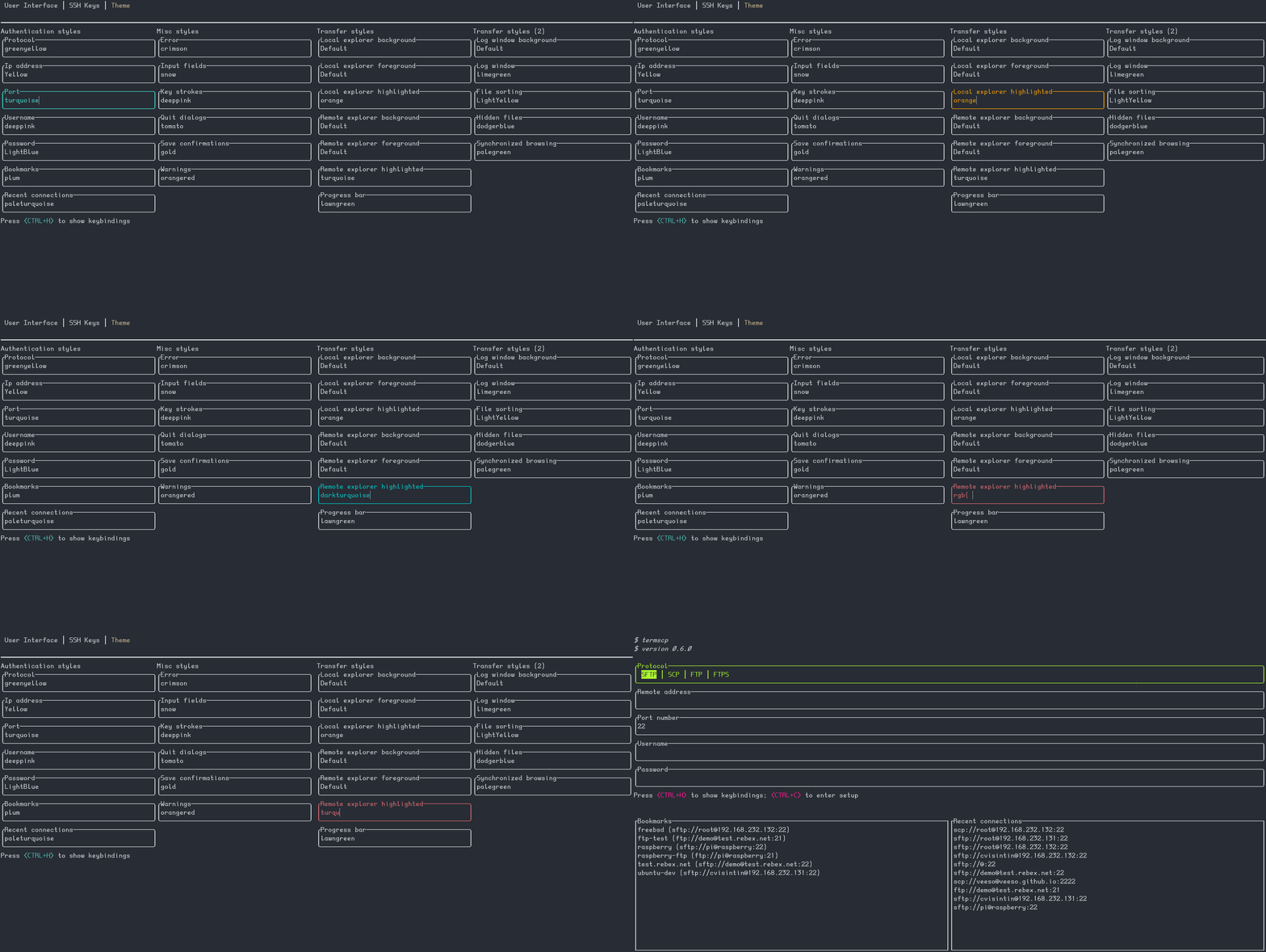
To customize termscp from the configuration menu, enter the configuration from
the auth screen by pressing <CTRL+C>, then press <TAB> twice to reach the
themes panel. Move with <UP> and <DOWN> to select the style you want to
change, as shown in the gif below:
Import a theme file
You can also import theme files. You can take inspiration from, or directly use,
one of the themes bundled with termscp in the themes/ directory of the
repository. Import a theme by running:
termscp -t <theme_file>
This is also available as:
termscp theme <theme_file>
If everything is fine, termscp confirms the theme has been imported.
Color syntax
termscp accepts the following color formats:
- Explicit hexadecimal:
#rrggbb - RGB:
rgb(r, g, b) - CSS color names (such as
crimson) - The special keyword
Default, which uses the situational default foreground or background color (foreground for texts and lines, background otherwise)
Recovering from a theme that won't load
After an update, a saved theme can fail to load. This happens when a new key is added to themes: the previously saved theme no longer contains that key. There are two quick fixes:
-
Re-import the official theme. After each release the official themes are patched, so download the updated theme from the repository and re-import it:
termscp -t <theme.toml> -
Edit your theme by hand. If you use a custom theme, edit the file and add the missing key. The theme is located at
$CONFIG_DIR/termscp/theme.toml, where$CONFIG_DIRis:- FreeBSD/Linux:
$HOME/.config/ - macOS:
$HOME/Library/Application Support - Windows:
%appdata%
Missing keys are reported in the CHANGELOG under
BREAKING CHANGESfor the version you have just installed. - FreeBSD/Linux:
Styles
The tables below describe each style field. Note that styles do not apply to the configuration page, so it always remains usable in case you change something by mistake.
Authentication page
| Key | Description |
|---|---|
auth_address |
Color of the input field for IP address |
auth_bookmarks |
Color of the bookmarks panel |
auth_password |
Color of the input field for password |
auth_port |
Color of the input field for port number |
auth_protocol |
Color of the radio group for protocol |
auth_recents |
Color of the recents panel |
auth_username |
Color of the input field for username |
Transfer page
| Key | Description |
|---|---|
transfer_local_explorer_background |
Background color of localhost explorer |
transfer_local_explorer_foreground |
Foreground color of localhost explorer |
transfer_local_explorer_highlighted |
Border and highlighted color for localhost explorer |
transfer_remote_explorer_background |
Background color of remote explorer |
transfer_remote_explorer_foreground |
Foreground color of remote explorer |
transfer_remote_explorer_highlighted |
Border and highlighted color for remote explorer |
transfer_log_background |
Background color for log panel |
transfer_log_window |
Window color for log panel |
transfer_progress_bar_partial |
Partial progress bar color |
transfer_progress_bar_total |
Total progress bar color |
transfer_status_hidden |
Color for status bar "hidden" label |
transfer_status_sorting |
Color for status bar "sorting" label; applies also to file sorting dialog |
transfer_status_sync_browsing |
Color for status bar "sync browsing" label |
Misc
These styles apply to different parts of the application.
| Key | Description |
|---|---|
misc_error_dialog |
Color for error messages |
misc_info_dialog |
Color for info dialogs |
misc_input_dialog |
Color for input dialogs (such as copy file) |
misc_keys |
Color of text for key strokes |
misc_quit_dialog |
Color for quit dialogs |
misc_save_dialog |
Color for save dialogs |
misc_warn_dialog |
Color for warn dialogs |